Icons
When used judiciously, icons can improve usability and accessibility in webpages.
Summary
Icons are an effective tool to emphasize and clarify your content. Used judiciously they can improve usability and accessibility for those with reading difficulties, visual impairments, neuro-cognitive differences or people who may not be adept with the language. However these benefits must be delivered in such a way so as to avoid creating barriers for blind users and others who rely upon screen reader (or braille display) devices.
Use the SVG format
The options for which format to use when including icons really comes down to either an icon font or using SVG graphics. Other possibilities, like using rasterized images, are always a worse option since they are less flexible and do not scale without looking janky. Both SVGs and icon fonts allow for sharp scaling but of the two there are more downsides to using icon fonts.
Users may prefer or need to override the fonts specified in a webpage. This is common enough (e.g. it will happen whenever a page is viewed in "reader mode") that it should be expected and the resulting confusion avoided. Also, since icon fonts are in fact fonts, browsers will apply the same anti-aliasing and font-smoothing algorithm to them as they do to any other text. SVGs however are understood to be graphical elements.
Depending on how you include the SVG, the options for animation and positioning are also much greater with SVGs than icon fonts.
SVG as img
Browsers have good support for using SVG graphics as src documents for our old friend the HTML img element. [1]
<a href="#accessibility" style="font-size:120%">
  <img class="icon icon-inline icon-dark" src="/static/img/icons/icon-accessibility-symbol.svg" alt="">Accessibility settings
</a>
Screen reader: "link, Accessibility settings"
The HTML img element is a very straightforward method of including an SVG. Including SVG data in the HTML itseld offers more options, for example an img-based icon cannot be styled to match the currentColor. Images however can match the relative size of the surrounding text, based on the rules in our .icon class (see below).
Notice that the image element has an alt="" attribute. This is because we are treating the icon as purely decorative since the adjacent text already provides the content and meaning of the link.
While this is a usable solution, if you want to have more flexibility for changing the color of your icons or applying animations, use the svg element for icons.
Controlling the color of SVGs
Using CSS to control the color of individual components in an svg element is very flexible and relatively straightforward. It is possible however to affect the color of an img element that uses an SVG graphic as its source by using a CSS filter. The style rule below for example, when added to an img element, will modify the color of a black SVG to green.
.filter-green {
  filter: invert(70%) sepia(81%) saturate(2882%) hue-rotate(73deg) brightness(89%) contrast(96%);
}<img class="icon icon-inline" src="/static/img/icons/icon-accessibility-symbol.svg" alt="Accessibility">
<img class="icon icon-inline filter-green" src="/static/img/icons/icon-accessibility-symbol.svg" alt="Accessibility">Managing SVG icons
SVG icon definitions, the mathematical points, paths, strokes, and fill data that tell the browser how to draw the icon, must be made available in your HTML document. You can inline this data in situ each time you wish an icon to be shown. [2] I personally prefer to define all the icon definitions I intend to use together in one place, and then refer to those definitions whenever I want one to be shown. For example, this SVG icon set includes only two icon symbols representing the accessibility icon and a popular social media brand, but it could logically have any number of named symbols.
<span class="visually-hidden" aria-hidden="true">
  <svg version="1.1" xmlns="http://www.w3.org/2000/svg" xmlns:xlink="http://www.w3.org/1999/xlink">
    <defs>
        <symbol id="icon-accessibility" viewBox="0 0 32 32">
            <title>Accessibility</title>
            <path d="M13 3a3 3 0 1 1 6 0 3 3 0 0 1-6 0z" />
            <path d="m20 10 10.3-4.443-.743-1.857L17 8h-2L2.443 3.7 1.7 5.557 12 10v8L7.898 31.268l1.87.709L15.572 19h.857l5.804 12.977 1.87-.709L20.001 18z" />
        </symbol>
        <symbol id="icon-mastodon" viewBox="0 0 32 32">
            <title>Mastodon</title>
            <path d="M30.924 10.505c0-6.941-4.548-8.976-4.548-8.976C24.083.476 20.144.033 16.055 0h-.101c-4.091.033-8.027.476-10.32 1.529 0 0-4.548 2.035-4.548 8.976 0 1.589-.031 3.491.02 5.505.165 6.789 1.245 13.479 7.521 15.14 2.893.765 5.379.927 7.38.816 3.629-.2 5.667-1.296 5.667-1.296l-.12-2.633s-2.593.817-5.505.719c-2.887-.099-5.932-.311-6.399-3.855a7.069 7.069 0 0 1-.064-.967v-.028.001s2.833.693 6.423.857c2.195.1 4.253-.129 6.344-.377 4.009-.479 7.5-2.949 7.939-5.207.689-3.553.633-8.676.633-8.676zm-5.365 8.946H22.23v-8.159c0-1.72-.724-2.592-2.171-2.592-1.6 0-2.403 1.035-2.403 3.083v4.465h-3.311v-4.467c0-2.048-.803-3.083-2.403-3.083-1.447 0-2.171.873-2.171 2.592v8.159H6.442v-8.404c0-1.719.437-3.084 1.316-4.093.907-1.011 2.092-1.528 3.565-1.528 1.704 0 2.995.655 3.848 1.965l.828 1.391.829-1.391c.853-1.311 2.144-1.965 3.848-1.965 1.472 0 2.659.517 3.565 1.528.877 1.009 1.315 2.375 1.315 4.093z"></path>
        </symbol>
        <symbol id="icon-upload" viewBox="0 0 32 32">
            <title>Upload</title>
            <path d="M27.883 12.078c0.076-0.347 0.117-0.708 0.117-1.078 0-2.761-2.239-5-5-5-0.444 0-0.875 0.058-1.285 0.167-0.775-2.417-3.040-4.167-5.715-4.167-2.73 0-5.033 1.823-5.76 4.318-0.711-0.207-1.462-0.318-2.24-0.318-4.418 0-8 3.582-8 8s3.582 8 8 8h4v6h8v-6h7c2.761 0 5-2.239 5-5 0-2.46-1.777-4.505-4.117-4.922zM18 20v6h-4v-6h-5l7-7 7 7h-5z"></path>
        </symbol>
        <symbol id="icon-search" viewBox="0 0 32 32">
            <title>Search</title>
            <path d="M31.008 27.231l-7.58-6.447c-0.784-0.705-1.622-1.029-2.299-0.998 1.789-2.096 2.87-4.815 2.87-7.787 0-6.627-5.373-12-12-12s-12 5.373-12 12 5.373 12 12 12c2.972 0 5.691-1.081 7.787-2.87-0.031 0.677 0.293 1.515 0.998 2.299l6.447 7.58c1.104 1.226 2.907 1.33 4.007 0.23s0.997-2.903-0.23-4.007zM12 20c-4.418 0-8-3.582-8-8s3.582-8 8-8 8 3.582 8 8-3.582 8-8 8z"></path>
        </symbol>
        <symbol id="icon-spinner" viewBox="0 0 32 32">
            <title>Spinner</title>
            <path d="M16 0c-8.837 0-16 7.163-16 16s7.163 16 16 16 16-7.163 16-16-7.163-16-16-16zM16 8c4.418 0 8 3.582 8 8s-3.582 8-8 8-8-3.582-8-8 3.582-8 8-8zM25.546 25.546c-2.55 2.55-5.94 3.954-9.546 3.954s-6.996-1.404-9.546-3.954-3.954-5.94-3.954-9.546c0-3.606 1.404-6.996 3.954-9.546l2.121 2.121c0 0 0 0 0 0-4.094 4.094-4.094 10.755 0 14.849 1.983 1.983 4.62 3.075 7.425 3.075s5.441-1.092 7.425-3.075c4.094-4.094 4.094-10.755 0-14.849l2.121-2.121c2.55 2.55 3.954 5.94 3.954 9.546s-1.404 6.996-3.954 9.546z"></path>
        </symbol>
    </defs>
  </svg>
</span><a href="https://example.com/accessibility" style="color:rebeccapurple">
<svg aria-hidden="true" focusable="false" role="img" class="icon icon-inline">
<use href="#icon-accessibility" xlink:href="#icon-accessibility"></use>
</svg>Accessibility Settings
</a>Screen reader: "link, Accessibility settings"
SVG data is readily compatible with web component-based frameworks like React. For a small number of icons, you could export each icon individually like so:
export const AccessibilityIcon = () => {
  return (
    <svg
      hidden="true"
      role="img"
      focusable="false"
      viewBox="0 0 32 32"
      xmlns="<http://www.w3.org/2000/svg>"
    >
      <path d="M13 3c0-1.657 1.343-3 3-3s3 1.343 3 3c0 1.657-1.343 3-3 3s-3-1.343-3-3z"></path>
      <path d="M20 10l10.3-4.443-0.743-1.857-12.557 4.3h-2l-12.557-4.3-0.743 1.857 10.3 4.443v8l-4.102 13.268 1.87 0.709 5.804-12.977h0.857l5.804 12.977 1.87-0.709-4.102-13.268z"></path>
    </svg>
  )
}<AccessibilityIcon />Open source tools like SVGR or unplugin-icons make it convenient to automatically transform SVG formatted graphics into React icon components.
Icons and accessible names
HTML elements having the role of link, button, label, columnheader, and others [3] must be provided text content to act as the "accessible name" of the element.
A common example where this becomes important is when an icon is used as the only content of a link. A screen reader encountering such a link will, by default, only announce "link" followed by whatever the href attribute value is: hardly useful!
<a href="/">Home</a>
<a href="/"><img src="icon-home.png" alt="Home"></a>Providing text equivalents
Icons are graphical, so their meaning can't be perceived by blind or visually impaired users who rely upon assistive technology like text-to-speech or braille displays, unless equivalent text is also provided.
The best supported and most straightforward technique for providing equivalent text to an icon is to treat the icon as if it were purely decorative and use visible text to supply meaning. The visible text will naturally be supported by every user-agent, consistently available to every screen reader and to sighted users as well. In particular this has the benefit of increasing understandability for sighted users who may not recognise the meaning of an icon alone: users with cognitive, nuerodivergent, or socio-cultural differences for example.
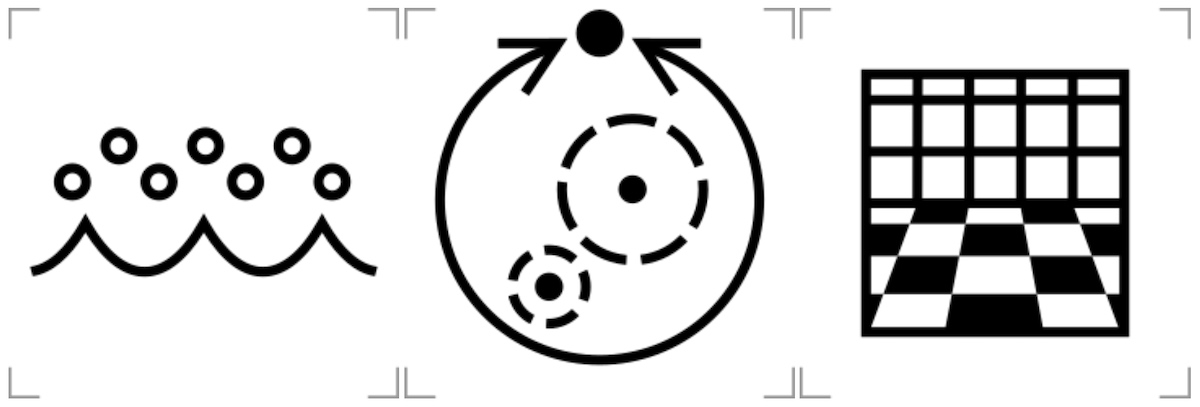
Examples of ISO-7000 icons that may be confusing to you initially if there were no accompanying text to explain what these graphical symbols represent (from left to right): Washing solution, Automatic (engine) transmission, and Disinfectant for floor and walls.
The following CSS visually styles the icons used in the demonstrations below, but this can be adjusted to suit your own designs. The svg elements are styled to adapt fully with their surrounding text: the fill and stroke properties are set to match whatever the currentColor is, and the width and height are measured in the relative unit em which will allow the icon to naturally resize along with the surrounding text.
.icon,
.icon-inline {
  display: inline-block;
  height: 1.2em;
  width: 1.2em;
  vertical-align: text-top;
  stroke-width: 0;
  stroke: currentColor;
  fill: currentColor;
}
html[dir="ltr"] .icon-inline {
  margin-right: 0.2em;
}
.demo a,
a:hover svg.icon {
  text-decoration: none;
}
.demo a:hover {
  text-decoration: underline;
}
In the example below the icon is assigned the aria-hidden="true" attribute because while we want the icon to be visible, it is not necessary for screen reader users to understand the meaning of the link: the text already provides that meaning. Similarly no SVG title element or other alternative text accommodation is needed either.
We're on the socials!
<a href="#toot">
  <svg aria-hidden="true" focusable="false" role="img" class="icon icon-inline">
    <use href="#icon-mastodon" xlink:href="#icon-mastodon"></use>
  </svg>Toot us on Mastodon
</a>
Screen reader: "We're on the socials!"
Screen reader: "link, Toot us on Mastodon"
Be careful not to provide regular text and alternative text. In the previous example the aria-hidden="true" and focusable="false" [4] attributes are used to keep the icon graphic out of the way of screen readers and keyboard navigation, and ensures that screen reader users don't hear confusing and redundant information like "link, Mastodon Toot us on Mastodon".
Using hidden text
In some cases the design requires that no visible text appear with the icon: a simple row of social media logos that link to different accounts in the footer for example. Understand that removing the visible text will always make an icon less accessible, but for users of assistive technology like screen readers, the text equivalent must still be supplied.
The range of techniques for supplying alternative text for an SVG icon includes using one of several ARIA attributes and combines SVG title and desc elements. None of these has perfect support in every combination of device, web browser, and assistive technology however.
A simpler approach is to continue to supply equivalent text alongside the icon but to style that text so that it is visually hidden (whilst still available to screen readers). This has the advantage that if the browser is in a state where it cannot apply CSS style sheets, the visually-hidden text will very helpfully become visually visible again. In these examples the visually-hidden class is used to accomplish this. There are accessible definitions of this class in many CSS frameworks, like Tailwind and Bootstrap.
<a href="https://example.com/toot">
  <svg aria-hidden="true" focusable="false" role="img" class="icon">
    <use href="#icon-mastodon" xlink:href="#icon-mastodon"></use>
  </svg><span class="visually-hidden">Toot us on Mastodon</span>
</a>
Screen reader: "link, Toot us on Mastodon"
Icons in buttons
The recommendations and caveats above can be applied to icons used as button content too: treat the icon as decorative only and supply equivalent text alongside the SVG. The text may be visually hidden, whilst kept available to screen readers, if required by the design.
<button class="btn btn-primary">
  <svg aria-hidden="true" focusable="false" role="img" class="icon">
    <use href="#icon-mastodon" xlink:href="#icon-mastodon"></use>
  </svg><span class="visually-hidden">Load more toots from Mastodon</span>
</button>

<button class="btn btn-light border">
  <svg aria-hidden="true" focusable="false" role="img" class="icon icon-inline">
    <use href="#icon-mastodon" xlink:href="#icon-mastodon"></use>
  </svg><span class="visually-hidden">Mastodon </span>Send toot
</button>
Screen reader: "Load more toots from Mastodon, button.
Mastodon Send toot, button, group."
Spinner icon
Spinners icons are a widely recognized signal to sighted users that some process is underway and that they should wait for that process to complete. As graphical elements these can be implemented using icons and CSS animations.
The button has an aria-labelledby attribute that provides an HTML element id reference to the element that acts as the button's accessible name. This name is read out by screen readers when the button gets focus.
When the icon changes to a spinner as a visual way of indicating new state, it is necessary to signal this change to the screen reader. In the example below an aria-live attribute [5] is added to an element within the button. Any changes to text within an aria-live element will then be announced by the screen reader (interrupting if necessary, due to the assertive value), notifying the user of the changed status.
<button id="button-upload" aria-labelledby="status-upload" class="btn btn-primary">
  <svg aria-hidden="true" focusable="false" role="img" class="icon icon-inline icon-upload">
    <use href="#icon-upload" xlink:href="#icon-upload"></use>
  </svg>
  <svg aria-hidden="true" focusable="false" role="img" class="icon icon-inline spinner hidden">
    <use href="#icon-spinner" xlink:href="#icon-spinner"></use>
  </svg>
  <span id="status-upload" role="alert" aria-live="assertive">Upload</span>
</button>
JavaScript is necessary to toggle the visual display of the icons, which are always hidden from screen readers using aria-hidden="true", and to update the text in the aria-live element. The screen reader will announce this change of text.
document.addEventListener('click', function (event) {
  if (!event.target.closest('#button-upload')) return;
  var els = document.querySelectorAll('#button-upload .icon-upload, #button-upload .icon-spinner');
  if (window.matchMedia('(prefers-reduced-motion: no-preference)').matches) {
    els.forEach(function(el){el.classList.toggle('hidden')});
  }
  var el = document.querySelector('#button-upload #status-upload');
  el.innerText = els[1].classList.contains('hidden')? 'Upload':'Sending';
});
The animation is implemented using CSS keyframes. Crucially however, both the CSS and the JS defer to a media query that has information about the user's system settings: whether or not they have indicated they prefer an interface with reduced animation, [6] window.matchMedia('(prefers-reduced-motion: no-preference)'). Users who have the preference enabled should see no animated icon at all, only the change in the button text to inform them that the upload feature is working.
@media (prefers-reduced-motion: no-preference) {
  .spinner {
    animation: rotate-cw 1.25s linear infinite;
  }
}
@keyframes rotate-cw {
  100% {
    transform: rotate(360deg);
  }
}
Sreen reader: "Upload, button, group"
Sreen reader: "Sending"
Notes and references
All modern browsers and 98.88% of browsers in total support SVG displayed using the IMG tag. source: caniuse.com back to reference 1
All modern browsers and 98.84% of browsers in total support embedding the
svgelement inline with the HTML code. source: caniuse.com back to reference 2Providing Accessible Names and Descriptions, W3C ARIA Authoring Practices Guide (APG) back to reference 3
"Inline SVG elements in IE are focusable by default which may cause issues with tab-ordering." Require
svgelements to have focusable attribute (svg-focusable) back to reference 4ARIA live regions, mdn web docs back to reference 5
Detecting the desire for less motion on the page: the prefers-reduced-motion feature W3C Editor's Draft: Media Queries Level 5 back to reference 6