Structure
Organising a webpage to prevent barriers for users who scan and navigate content using assistive technologies.
Document title
When using screen-reading software, the webpage title is always the first element announced. Having a unique, descriptive but concise title will make it easier for screen reader users to determine the content and purpose of your web page without having to scan the entire page.
Every page of a website should have its own unique title, capturing the overall content or purpose of that particular page. But consider that a user may have followed a link to arrive at the page, so appending appropriate context, for example the website title or the website section would be helpful.
<head>
  <title>The Perfect Get-Together: What to drink | Recipes | Diageo</title>
</head>
Avoid very short titles that don't provide an adequate overview of the content. But keep in mind that titles longer than about 60 characters are likely to be cropped in search engines listings.
Dynamiclly updating the title
If you are following a "single page application" model and update a webpage content dynamically, be aware that changing a webpage title via a script method will not cause the new title to be announced by most screen readers. It may be necessary to use an ARIA Live Region to announce when new content is loading and then move focus to the webpage's H1 element to make it obvious that the page content is different.
<h1 tabindex="-1">The Perfect Get-Together: What to drink</h1>
Headings
Screen readers will allow users to see a list of just the webpage's headings and to navigate the webpage by jumping directly to a specific heading. Keeping the total number of headings to a reasonable level, using descriptive but concise headings, and organising headings logically and hierarchically will make this much easier for users.
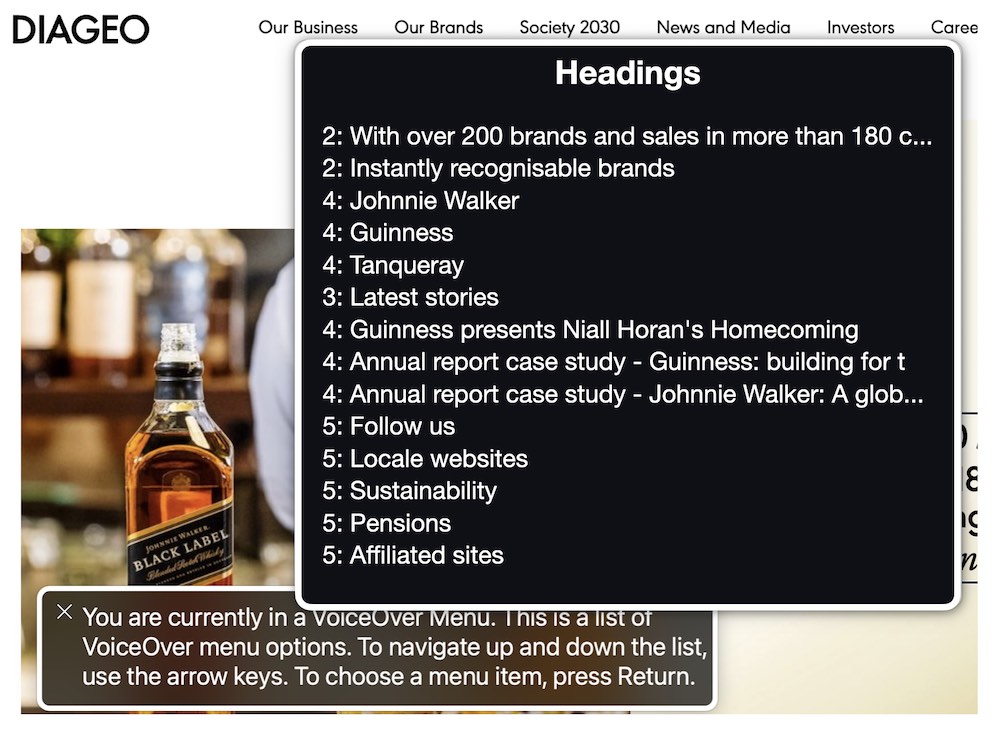
VoiceOver presents a menu that allows the user to scan and navigate the webpage by headings.
Notice that the VoiceOver menu crops any headings which are over about 50 characters in length, so it's useful to front-load your heading content so that the most specific and relevant text is near the beginning.
Landmarks
The overall structure of a webpage is represented by identifying and labeling each section using landmarks. Landmarks allow assistive technology users to quickly navigate to specific areas of a page and easily orient themselves within the overall page content.
ARIA landmarks should be used to contain all of the perceivable text on a webpage, including text that could be read by a screen reader for example, but which may not necessarily be visible to sighted users.
Overview
HTML tags that represent landmarks:
<aside>- implies thecomplementarylandmark role by default; used for content that relates to and supports the core content but can be understood separately.<footer>- implies thecontentinforole by default; typically used for sitewide copyright information and secondary navigation to organisation policy and information statements.<header>- implies thebannerlandmark role by default; typically used for sitewide navigation links, logo, search form.<main>- implies themainrole by default; used for content that expresses or relates directly to the core topic or purpose of a webpage.<nav>- implies thenavigationrole by default; intended to present navigational links to content within the webpage or the website.<section>implies theregionrole when the element has an accessible name; used for generic region of related content within a webpage, used when a more specific semantic element is not available.
Using landmarks can help users of screen reader assistive technology navigate your webpage. The VoiceOver screen reader for example will announce when the user enters a region, and offer options for easily navigating over, into, or out of that content.
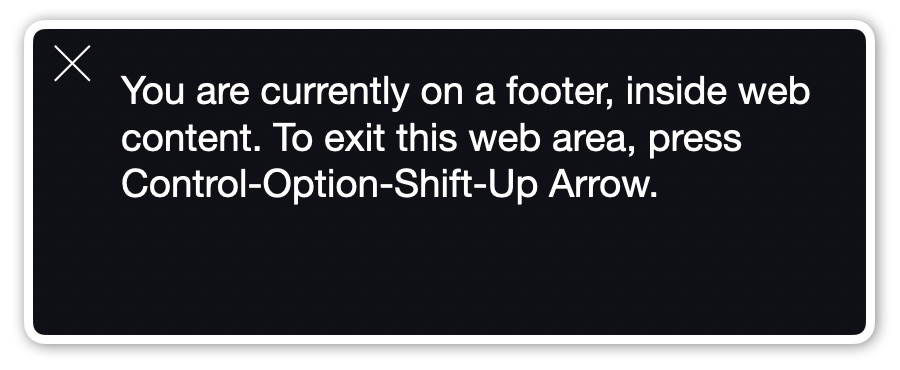
VoiceOver announces that the user has moved the screen reader cursor into a footer region: "You are currently on a footer, inside web content. To exit this web area, press Control-Option-Shift-Up Arrow."
Nested regions
The various regions may be related to one another according to logical rules: some regions are not permitted to be contained within others, while some regions are often found within others. A nav element for example is frequently a child of the header element, creating a Banner landmark which contains a Navigation landmark.

Navigation links with a nav element create a navigation role within a header element that creates a banner role.
Applying regions
A typical webpage will be divided into landmarks using a general tag structure like:
<body>
  <header>
    <nav aria-label="primary-links">
    </nav>
  </header>
  <main>
    <section aria-label="recipes">
    </section>
    <section aria-label="brands">
    </section>
  </main>
  <footer>
    <nav aria-label="footer-links">
    </nav>
  </footer>
</body>
Based on this markup the browser will identify each region based on its role.
- Banner
- Navigation
- Main
- Region (labelled)
- Region (labelled)
- Content information
- Navigation
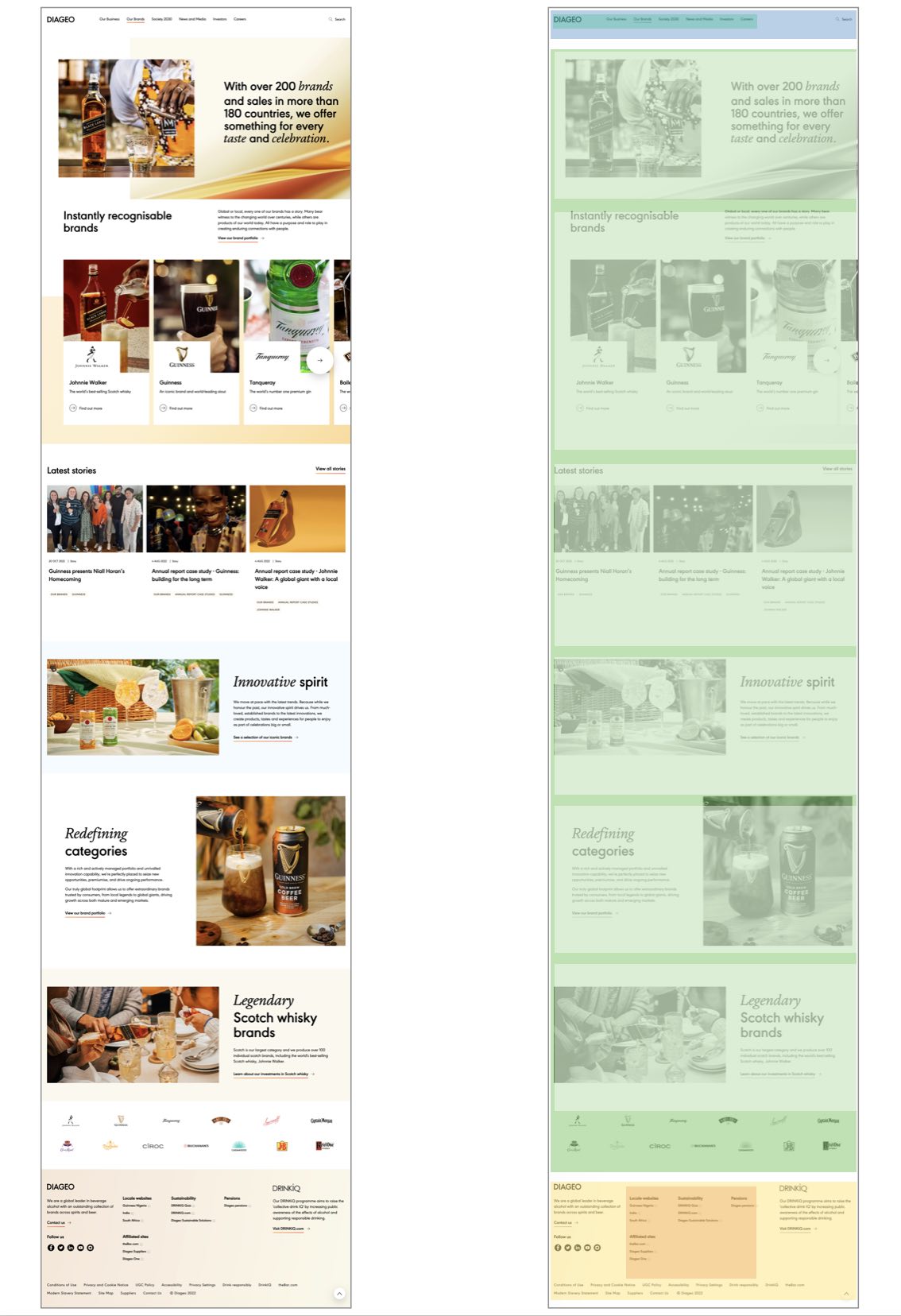
A typical webpage is logically divided into several landmarks and regions. Here each region is overlaid and represented as a colored rectangle on the screengrab of the webpage.
Navigating by landmark
A user of the VoiceOver screen reader can hear a list of landmarks as an overview to use when quickly scanning or navigating the webpage content.
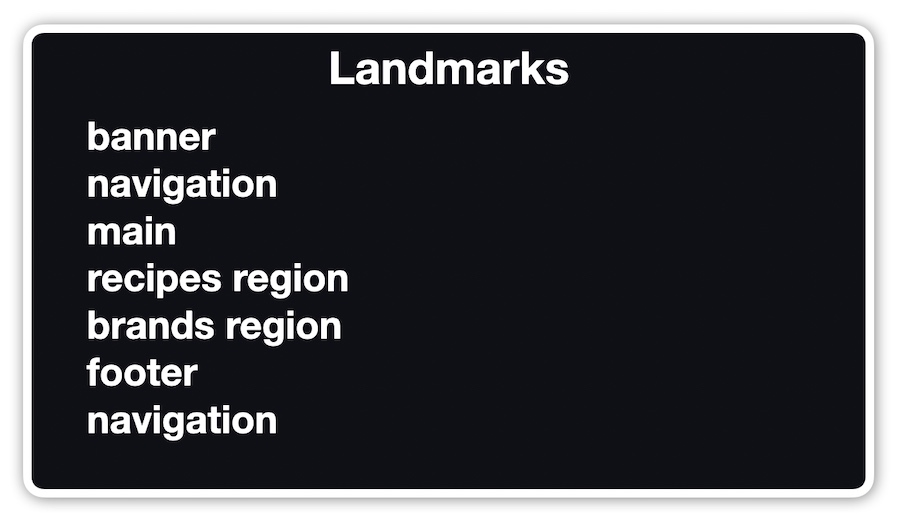
VoiceOver presents a list of landmarks on the webpage: "banner, navigation, main, recipes region, brands region, footer, navigation"
Search
The search role is used to identify the form element (or elements) on a webpage that provide the ability to search the site, the page, or some other realated data source. The search role should be added the the form tag, or the element surrounding the form.
<form role="search">
  <label for="search-input-nav">I'm interested in...</label>
  <input type="search" id="search-input-nav" name="q">
  <button type="submit">Search</button>
</form>
Multiple forms with the search role on a page can be distiguished by adding a descriptive aria-label that explains the purpose of each. Or you may use the same label if each search has the same purpose.
<form role="search" aria-label="Site">
  ...
</form>

<form role="search" aria-label="Recipe">
  ...
</form>
Note that when screen readers encounter a landmark role, they will announce it after reading the label. In the example above: "Site search" and "Recipe search".
The main landmark
The main role identifies central content that is the subject of that particular webpage; If the title describes the central content of the webpage, the element with the main role contains that content.
The main content area consists of content that is directly related to or expands upon the central topic of a document, or the main function of an application. [1]
You should only create one main landmark on a webpage. Multiple main landmarks would defeat its purpose: to identify the central content.
A screen reader user is likely to want the option to skip any banner or complimentary content at the top of every page and get directly to the main content. Adding a "skip link" near the top of the body element that points to the main element is a common and useful feature.
<a href="#main">Skip to main content</a>
...
<main id="main">
</main>
Section
The section element implies a region role by default. Use this to logically break up a large webpage into managable content areas that a screen reader user may wish to navigate to. It is a generic landmark used when no other landmark role is available.
<section aria-label="recipes">
  <h2>Recipes</h2>
  ...
</section>

<section aria-label="brands">
  <h2>Brands</h2>
  ...
</section>
Footer
The footer element of a body implies a contentinfo role by default. A document should only have one contentinfo landmark. Other elements may also have a footer element, for example an article, aside, main, nav, or section but these do not create a contentinfo role by default.
<body>
  <h1>The Perfect Get-Together: What to drink</h1>
    ...
  <footer>
    <p>
      <a href="/subscribe">Get our recipe of the month newsletter.</a>
    </p>
  </footer>
</body>
It is possible for elements other than the body element to have a footer (or header). For example several article elements may each have their own footers. In this case you can distinguish each by adding an aria-label attribute to provide a descriptive label for screen reader users.
<body>
  <h1>The Perfect Get-Together: What to drink</h1>

  <article>
    <h2>Cocktails with Spirit</h2>
    ...
    <footer aria-label="Cocktails with Spirit info">
      <p>
        Tagged: <a class="tag" href="/tag/spirits">spirits</a>
      </p>
    </footer>
  </article>

  <footer aria-label="Sitewide info">
    <p>
      <a href="/subscribe">Get our recipe of the month newsletter.</a>
    </p>
  </footer>
</body>
Note that when screen readers encounter a landmark role, they will announce it after reading the label. In the example above: "Cocktails with Spirit info footer" and "Sitewide info footer".
Notes and references
ARIA: main role, MDN web docs back to reference 1